Advent Calendar Day 15: Backup Move - Seamless Backup Migration
Advent Calendar Day 15: Moving Backups Without Breaking a Sweat
Welcome to Day 15 of our Veeam Blog Advent Calendar! Today we’re talking about a feature that might seem simple on the surface but is absolutely brilliant when you need it: Backup Move.
Need to migrate backups between repositories? Want to move them to faster storage, or maybe to the cloud? Backup Move does this while preserving all your deduplication and compression savings. This feature has been out for some time now but man when it came out this blew my mind and made life so much easier for hardware refreshes or customer migrations, it was definitely a quality of life upgrade we needed.
Grab your coffee, let’s get into it!
What Is Backup Move?
Backup Move is the ability to move backup chains between repositories or jobs, this really opened up so many doors for me when it came out as suddenly a hardware refresh wasn’t a 6 month pain to move data between repos, it became a simple right-click.k.
Having the ability to move a VM between jobs, moving workloads and their backups to another backup job can be helpful if you want to separate one backup job into multiple backup jobs or if you want to change backup settings for specific workloads. Also, you want to continue the existing backup chains for the workloads.
Without this awesome feature you’d be left to manually move the data with something like rclone, cross your fingers and hope the data stays consistent on the other side and then manually move backup jobs around, whilst completely possible it was a massive pain and prone to errors.
Why Would You Need This?
Here are some real-world scenarios where Backup Move becomes essential:
Repository Migration: You’re replacing old storage with new hardware. Move your existing backups to the new repository without losing any data or efficiency.
Storage Tiering: Move older backups to cheaper, slower storage while keeping recent backups on fast storage.
Cloud Migration: Migrating backups from on-premises to cloud repositories (or vice versa) without starting from scratch.
Performance Optimization: Move backups off an overloaded repository to balance the load across your infrastructure.
Decommissioning: Retiring a repository? Move all backups off before taking it offline.
How It Works
I know I say this a lot but Veeam really does make things simple which is both a positive and negative for my blogs :). This feature genuinely couldn’t be simpler.
-
Open the Veeam Backup and Replication Console
-
Navigate to the Disk Node
-
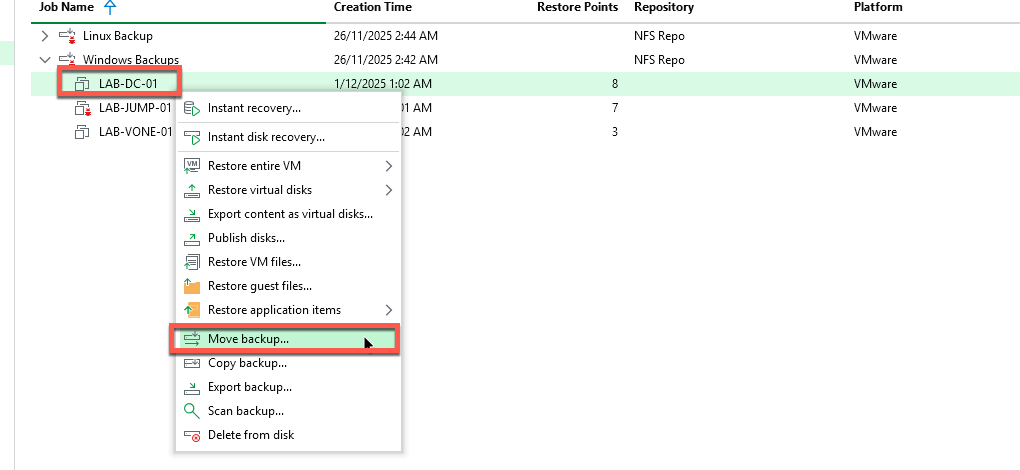
If you want to move a VM between Jobs:
- Select the VM
- Select Move Backup
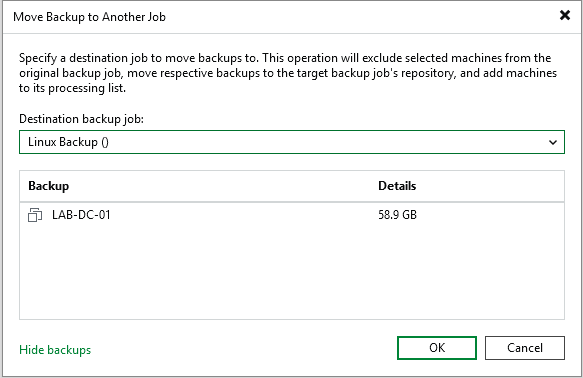
- Select the backup job to move to
- Click OK
-
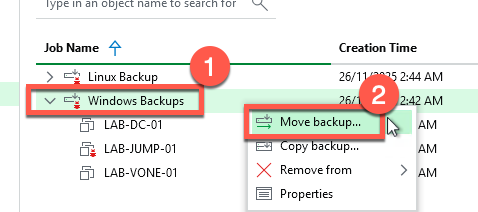
If you want to move to a different repository altogether
- Select the Backup
- Select the repo you wish to move to
- Click OK
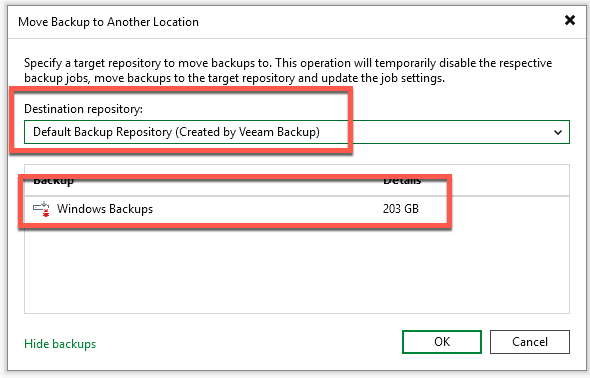
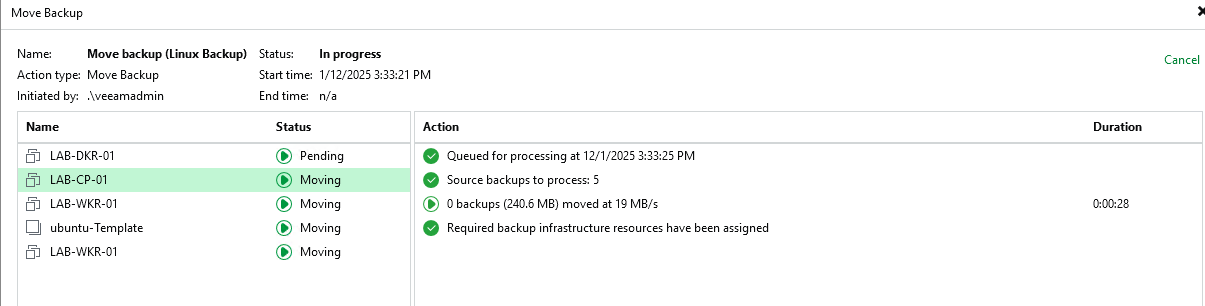
If we click on move we can see that it will move all of our workloads over to the other repo, keeping our savings and chains, it automatically disables the job, moves the workloads to the new repository, remaps the job to the new repository and re-enables the job again.
Wrapping Up
Backup Move represents Veeam’s commitment to operational flexibility. Storage strategies change, infrastructure evolves, and you shouldn’t be penalized by having to start over with new full backups.
The fact that it preserves deduplication and compression savings means migrations are both faster and cheaper. You’re not inflating data sizes or wasting bandwidth. And it’s refreshingly simple—no complex wizards, just right-click and move.
If you’re planning repository migrations, consolidations, or storage tier changes, Backup Move turns what could be a multi-day project into a straightforward operation that preserves all your optimization work.
See you tomorrow for Day 16! 🎄
Stay curious, stay efficient, and as always, happy backing up! 🎁