Advent Calendar Day 17: Protecting Intune Policies with Veeam
Advent Calendar Day 17: Backing Up Your Intune Configuration
Welcome to Day 17 of our Veeam Blog Advent Calendar! Today we’ll be talking about Intune Policies, something that was recently added to Veeam’s toolkit and worth exploring.
Your Intune environment contains critical device management policies, compliance settings, and app configurations. Losing these means hours of manual reconfiguration. Let’s look at how Veeam protects this essential infrastructure.
Grab your coffee or a beer—I don’t control your life :) let’s get into it!
Setup
As with all things Veeam, we’ve made this as simple and intuitive as possible. As we like saying, “it just works.”
-
Open the Veeam Backup and Replication Console
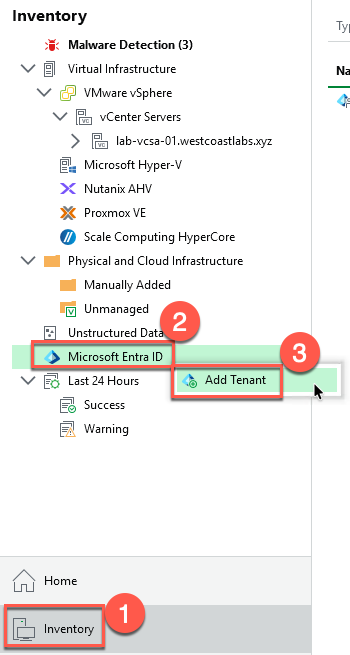
- Navigate to the “Inventory” node
- Select Microsoft Entra ID
- Right-click → Add Tenant
- Provide your tenant ID
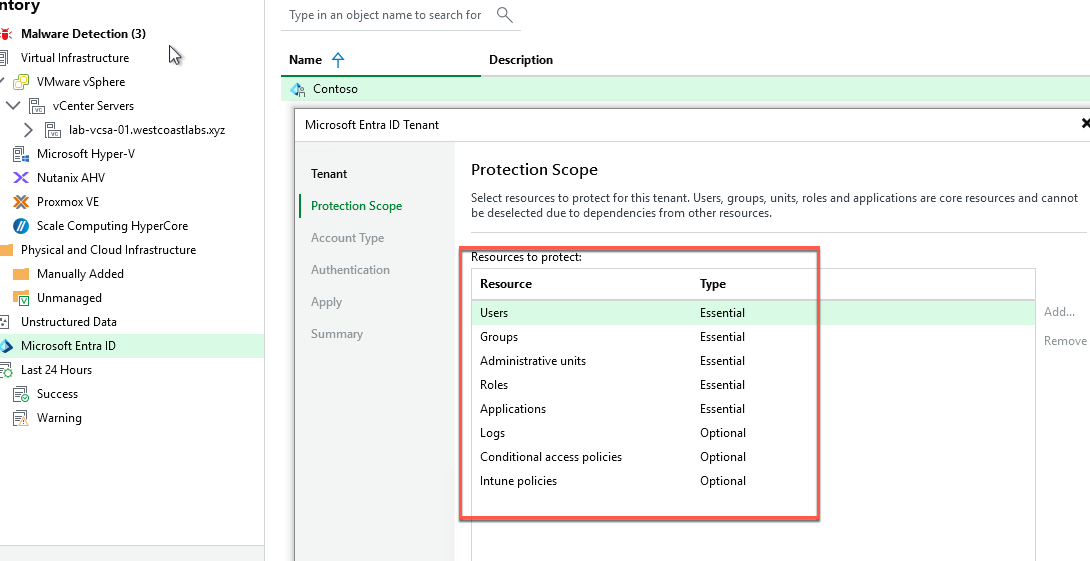
- Select the scope of resources you wish to protect
- Create a new App registration or leverage an existing one
- Authenticate using the device login flow
- Finish
Now that we have our Entra ID tenant created, we can move on to creating the backup job.
- Open the Veeam Backup and Replication Console
-
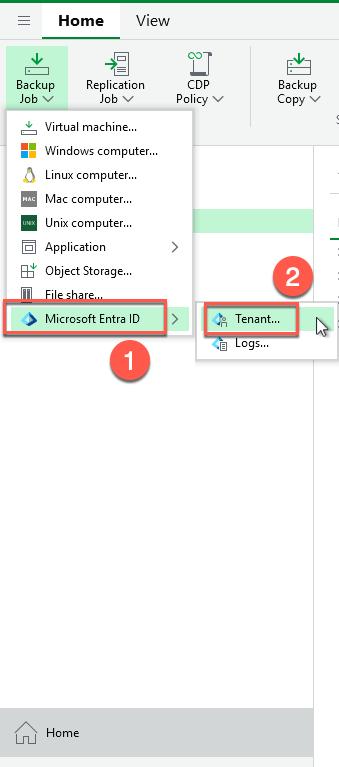
Navigate to the “Home” node
-
Select Backup Job → Entra ID
-
Provide a name for the backup job
-
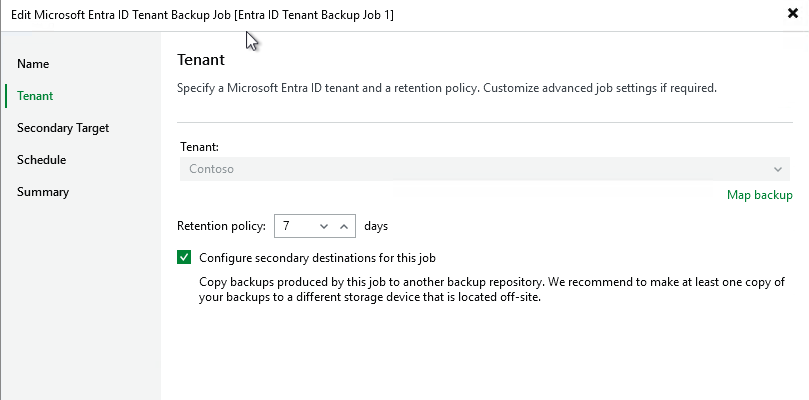
Select the tenant you wish to protect
- Define the retention and configure a secondary copy of the data
- Under Advanced, make sure to enable encryption
- Configure a schedule
- Finish
-
Let the job run successfully, and once that’s done, we can check out the restore options.
- Open the Veeam Backup and Replication Console
-
Navigate to the “Home” node
- Select the Disk tab
- Select the backup in question
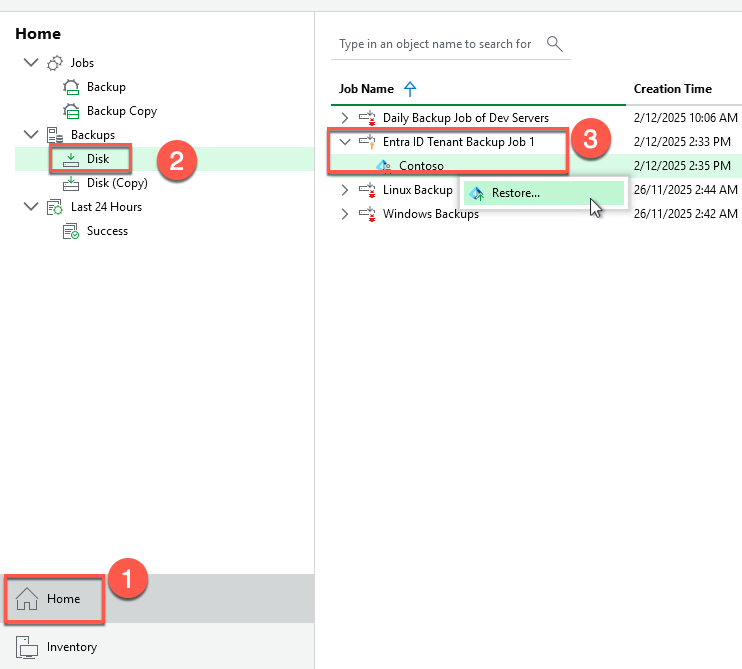
-
This will launch the explorer for Entra ID, and we can quickly see just how powerful this is. Not just for Intune policies, but from the same backup we also protected all the users, groups, admin units, Enterprise Applications, and conditional policies—which is incredible. So powerful!
Considering we are talking about Intune here, let’s do a restore.
-
Navigate to the Intune tab
- Select the policy you wish to restore
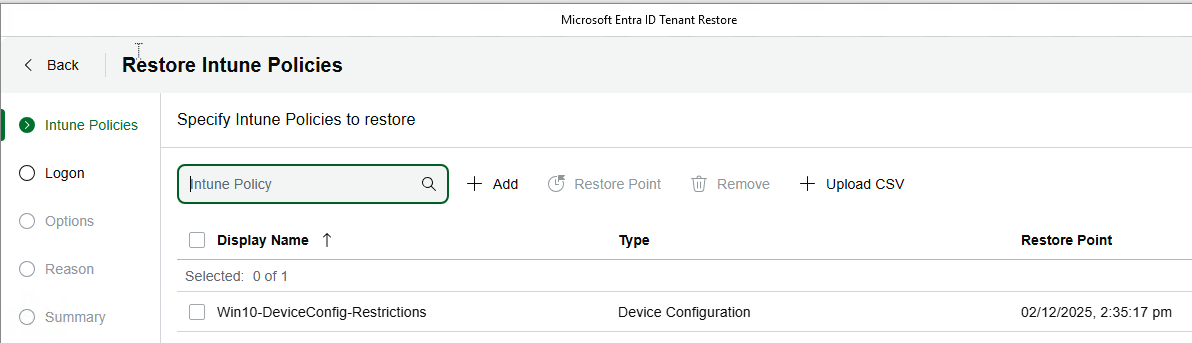
- Follow the device login process
- Select your restore option
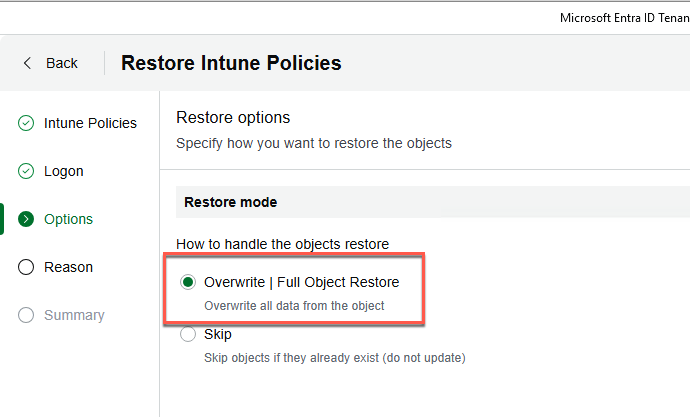
- Provide a restore reason
- Complete restore
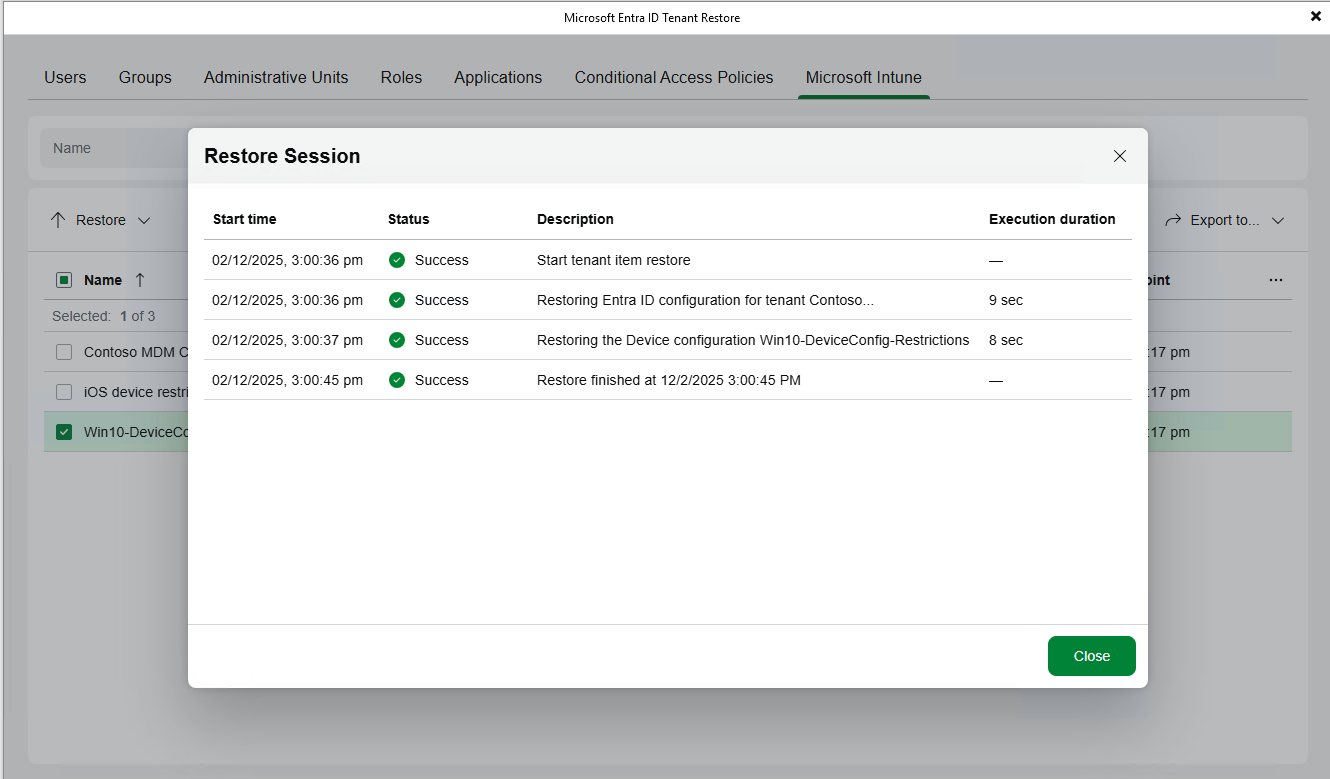
And that’s it! We’ve now successfully protected and restored an Intune policy.
Why This Matters
Intune is mission-critical for organizations managing endpoints. Device compliance affects user productivity and security posture. Having the ability to recover quickly from configuration issues or accidental changes is essential.
Veeam treats Intune as a first-class workload, giving you the same protection and recovery capabilities you expect for email and OneDrive.
If your organization relies on Intune for endpoint management, protecting those configurations should be part of your backup strategy. Veeam makes this simple and integrated with your existing Microsoft 365 protection.
Your Intune policies are too important to leave unprotected.
Wrapping Up
This was a fun one, and I actually learned a few things myself about how we protect Intune, what we can do with that data, and just how Intune fits together in general. I really enjoyed this one!
See you tomorrow for Day 18! 🎄
Stay curious, stay protected, and as always, happy backing up! 🎁